
Moderator gives one person control over who can share their screen to AirServer Connect.
When it's enabled, every device that tries to mirror is placed in a queue and won't appear on the screen until a moderator approves it.
This is particularly useful in classrooms, where a teacher can decide when each student's screen is shown, but it works just as well in meeting rooms or any other setting where you want a single person in charge of what's displayed.
Setting a Moderator password
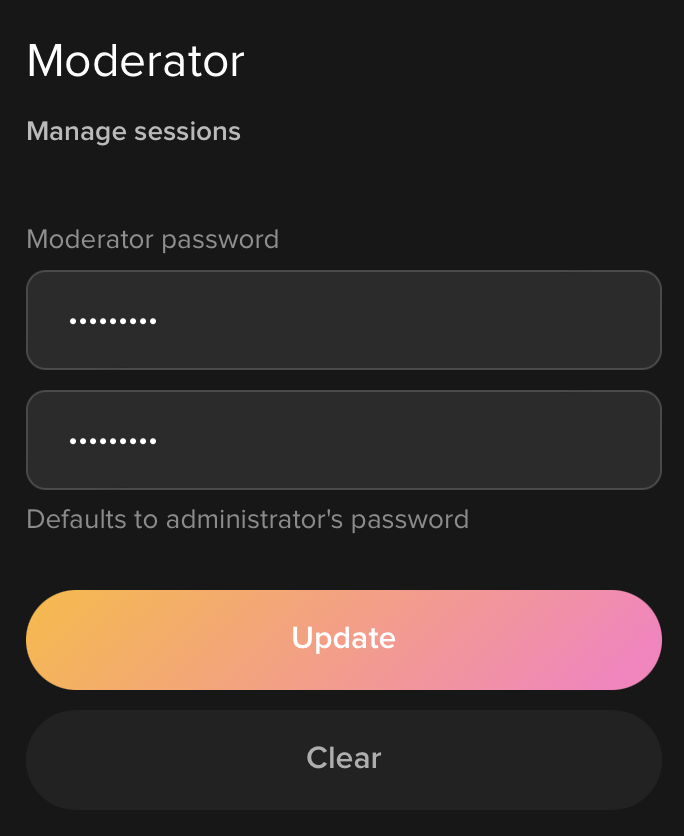
The Moderator user is enabled by default. If a separate Moderator password has not been set, it defaults to the Administrator password, meaning anyone with admin access can also moderate sessions.
We recommend setting a dedicated Moderator password so the person moderating sessions (for example, a teacher) doesn't also have full access to device settings.
To set one, sign in to the web interface as Administrator and go to Device Management → Moderator → Moderator password. Enter a password and click Update.
Enabling Moderator Approval
Open your Connect device's web interface in a browser and sign in as a Moderator.
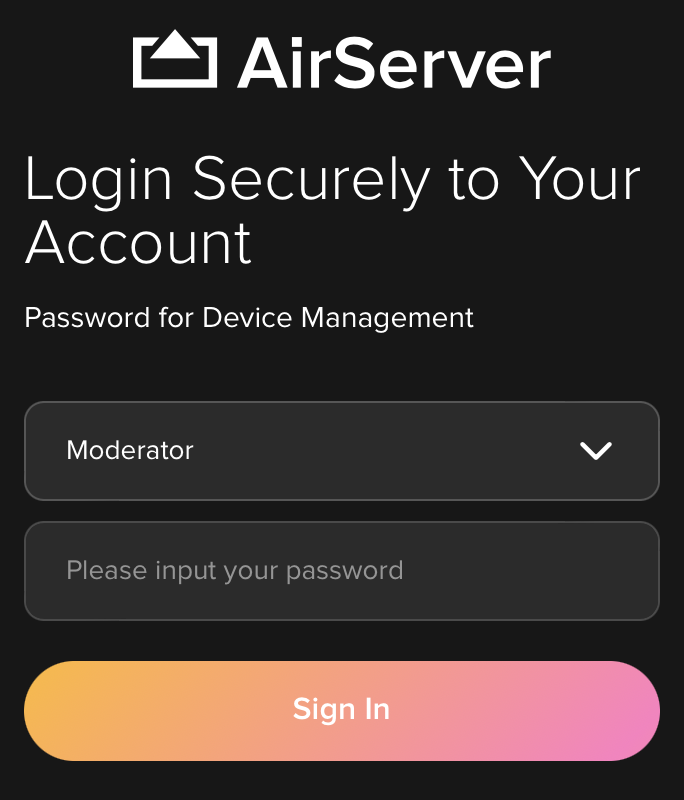
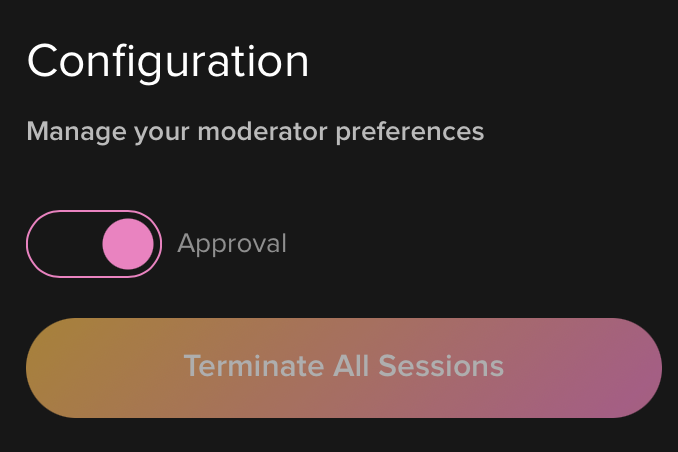
Once signed in, toggle the Approval switch. Moderator approval is now active and stays on until you turn it off. You don't need to enable it again for each session.
Approving connections
When someone tries to mirror their screen, their device appears in the pending Sessions list, showing the device name and which mirroring protocol it's using (AirPlay, Google Cast, or Miracast) along with a preview of the screen. The moderator can then approve or reject the request.
You can approve or deny requests in two ways:
- From the Moderator page.
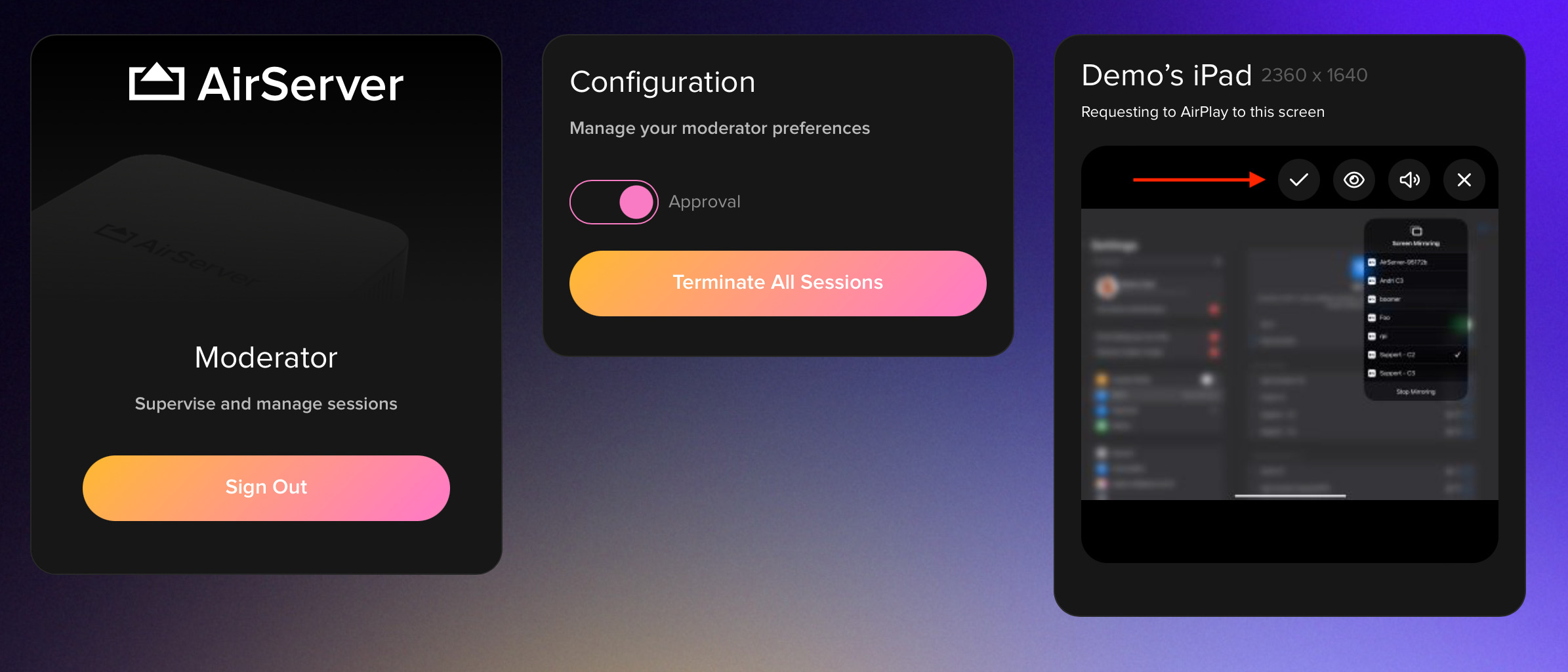
- Directly on the AirServer screen, if a touchscreen or USB mouse is connected. When a device requests to connect, the settings icon on the AirServer home screen starts blinking to let you know something is waiting for approval.
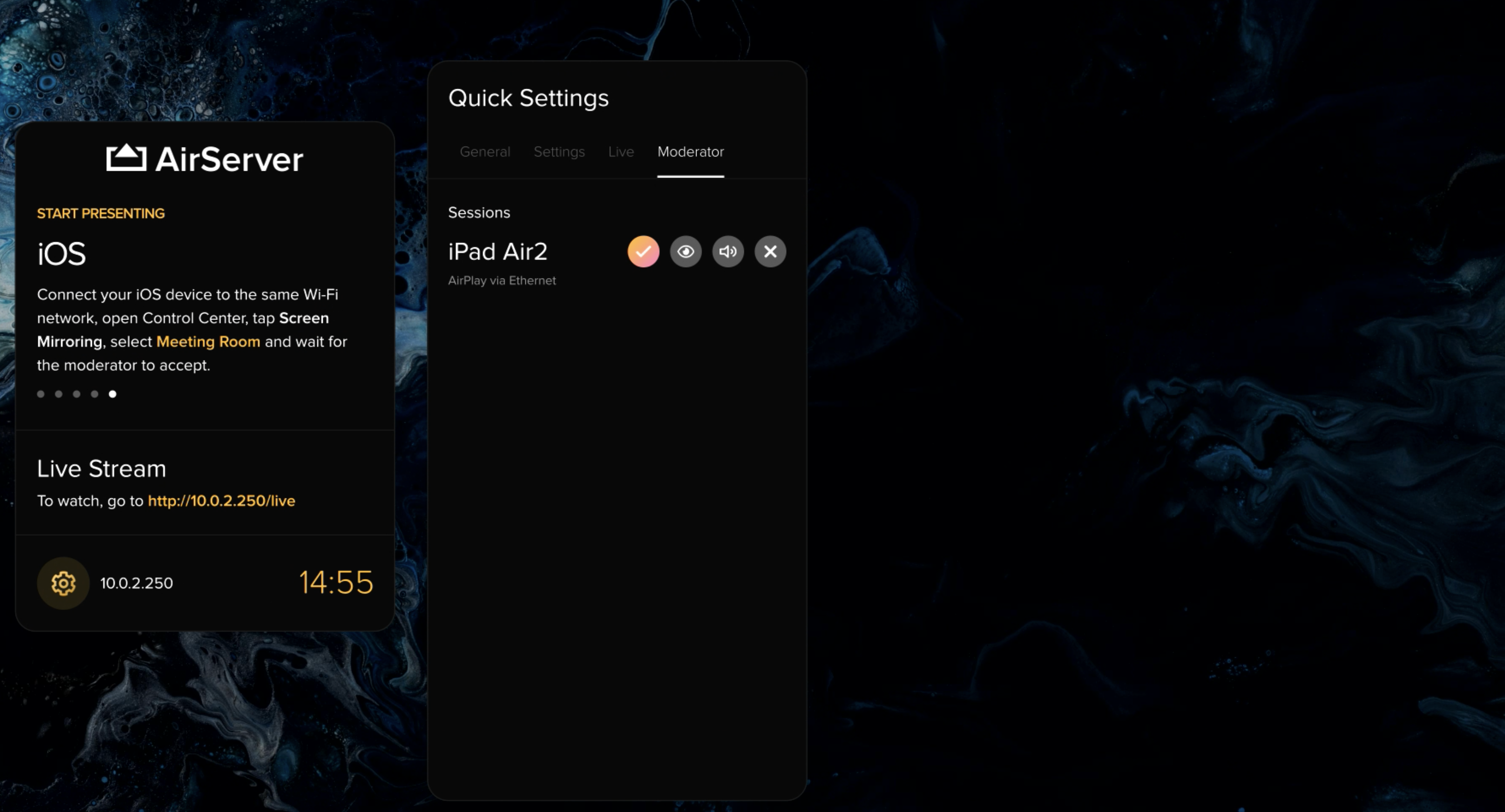
Once approved, the device moves to the Active Sessions list. From there, you can disconnect any individual session, or use Terminate All Sessions to disconnect everyone at once.
Managing active sessions
Once a session is approved, the moderator can control each session individually:
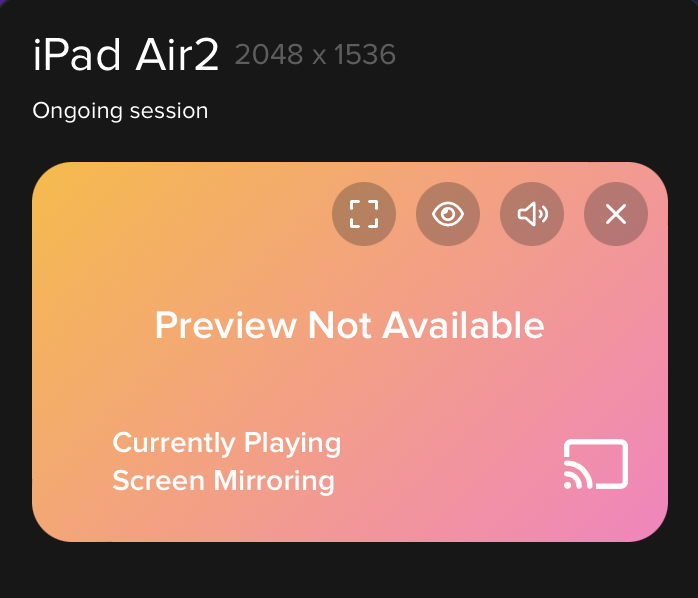
- Fullscreen: expands the session to fill the entire display, hiding any other active sessions.
- Hide: temporarily hides the session from the display without disconnecting it. Useful when you want to pause a session without ending it.
- Mute: mutes the audio for that session while keeping the screen visible.
- Close: disconnects the session entirely. The device will need to reconnect and be approved again to share.